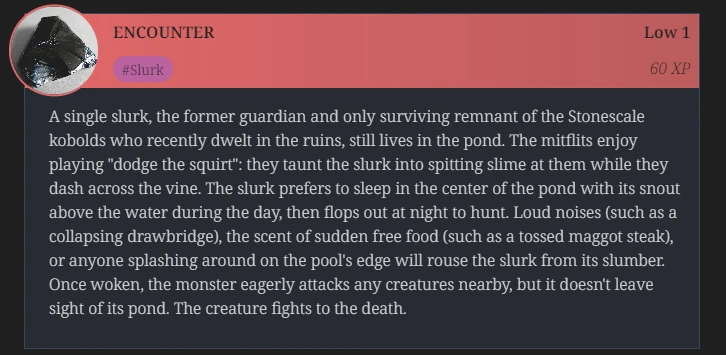
Organize data in the header of the callout.
There are two different syntaxes for this, depending on how you prefer to write your markdown. They will give similar results but not exactly the same.
Note that in both cases, the icon will be cropped in edit mode. You will need to be in preview (reading) mode to have the full circle not truncated.
Syntax 1
Add multiple elements inside the callout’s header. They will fill a two columns layout, first column being left aligned and second column being right align.
For the icon, add an embed image with the icon alt text inside the callout. It should be the first image, before the text, with an empty line.
You can also add the alt test no-border to remove the border around the image.
> [!data-header|pf2 red] **ENCOUNTER** **LOW 1** #Slurk *60 XP*
> ![[obsidian.jpeg|icon]]
>
> A single slurk, the former guardian and only ...
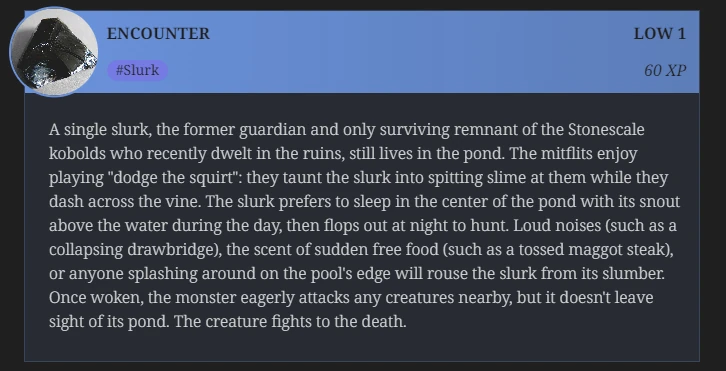
Syntax 2
Use a nested callout header with an image and a table inside its content. This is longer to write but gives you more control:
- You can use the alignment you want for each column
- You can have as many column as you want
- It’s easier to create an empty cell
- The header can have a different color than the content
To remove the border around the icon, add the metadata no-border to the header callout.
> [!data-header]
> > [!header|red]
> > ![[obsidian.jpeg]]
> >
> > | **ENCOUNTER** | **Low 1** |
> > |:------------- | ---------:|
> > | #Slurk        | *60 XP*   |
>
> A single slurk, the former guardian and only ...